How to Update Browser Extensions (Chrome, Edge & Firefox)
Step-by-step guide to manually update extensions in Chrome, Edge and Firefox. Force an immediate update for Note Pierce, Tempo Kit, or any browser extension in under a minute.
Browsers like Chrome, Edge and Firefox update extensions automatically in the background — but the timing is unpredictable. Sometimes you want the newest version right now, whether you just saw a release note for Note Pierce or Tempo Kit, or support asked you to make sure you're on the latest build.
Here's how to force an immediate extension update in every major browser. It takes less than a minute.
💡 Before updating: close any open extension popups or side panels so the new version can finish installing cleanly.
How to Update Extensions in Chrome
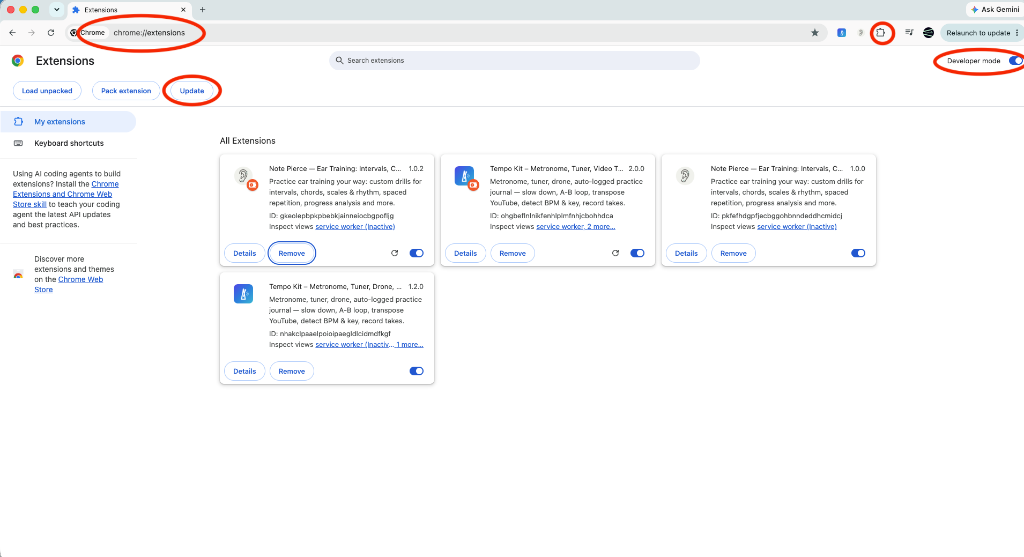
- 1. Go to
chrome://extensionsor click the puzzle piece icon in the top-right corner (next to your profile picture). Then manage extensions. - 2. Turn on Developer mode (toggle in the top-right corner in Chrome)
- 3. Click the Update button that appears
Chrome checks for extension updates roughly every few hours. Clicking Update forces an immediate check for every installed extension — including Note Pierce, Tempo Kit, and any other add-on.
You can turn Developer mode back off afterwards — it's only needed to reveal the Update button.
How to Update Extensions in Edge
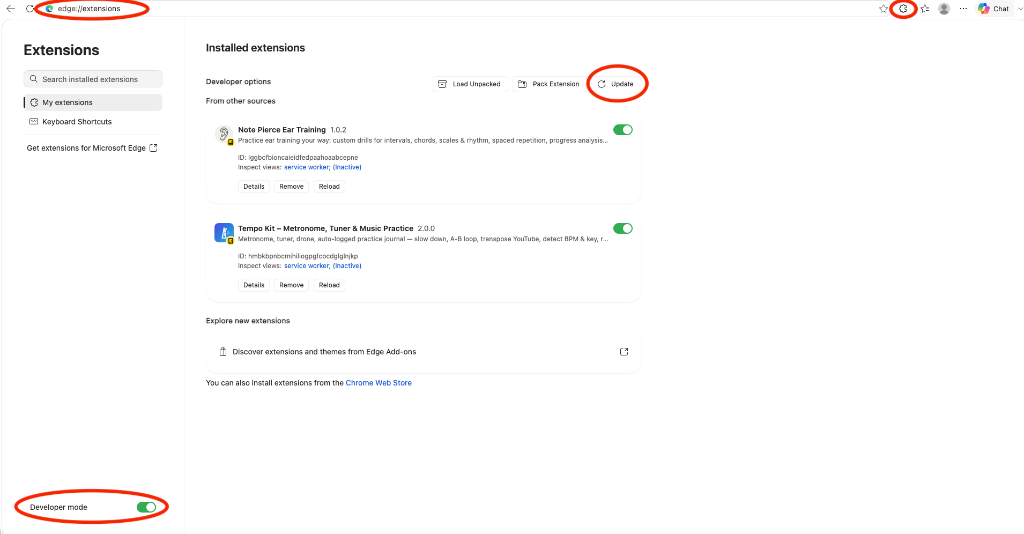
- 1. Go to
edge://extensionsor click the puzzle piece icon in the top-right corner (next to your profile picture). Then manage extensions. - 2. Turn on Developer mode (toggle on the bottom left sidebar)
- 3. Click Update
Edge is Chromium-based, so the process is nearly identical to Chrome. It also updates extensions automatically, but this forces it to check right now.
How to Update Extensions in Firefox
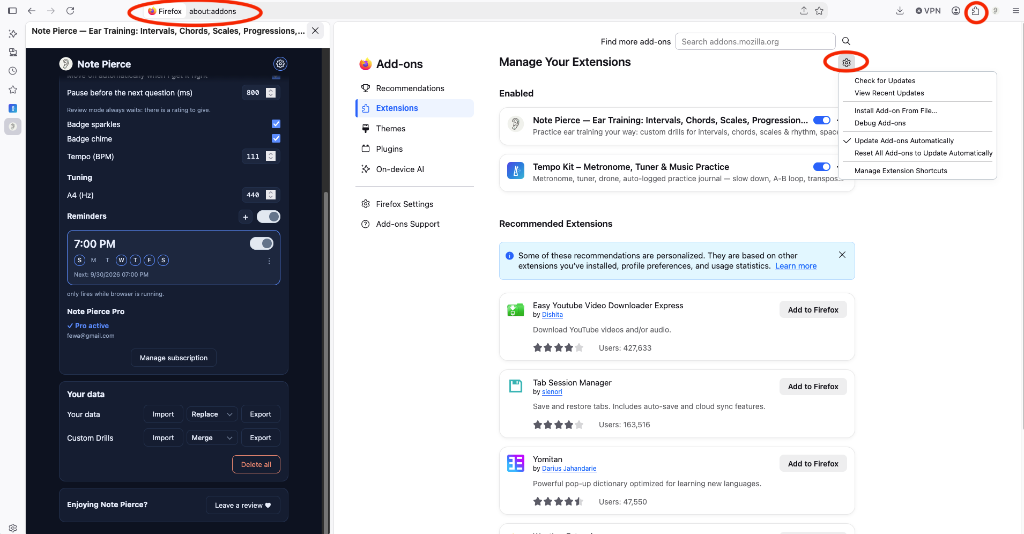
- 1. Open
about:addons(or pressCtrl+Shift+A/Cmd+Shift+A) or click the puzzle piece icon in the top-right corner (next to your profile picture). Then manage extensions. - 2. Select Extensions in the sidebar, then click the gear icon (⚙️) at the top
- 3. Choose Check for Updates
No Developer Mode needed in Firefox. The gear menu is always visible on the Extensions page.
How to Check Which Extension Version You Have
After updating, verify the version number to confirm the update went through:
- Chrome / Edge: On the extensions page, click Details on the extension card. The version is listed near the top.
- Firefox: On
about:addons, click the extension name. The version appears under the extension title.
Compare the version number to the latest release in the extension's changelog (e.g. Note Pierce changelog or Tempo Kit changelog) or the store listing to confirm you're up to date.
Extension Not Updating? Try These Fixes
If you followed the steps above and the version hasn't changed:
- Restart your browser. Some updates only fully load after a restart.
- Check the store listing. The update may not have rolled out to your region yet — store reviews can take a few hours to a few days.
- Reinstall as a last resort. If the extension supports data export (like Note Pierce or Tempo Kit), export your data first, remove the extension, reinstall it from the store, and import your backup.
Why You Should Keep Extensions Updated
Most of the time you never need to think about this. But there are a few situations where forcing an update helps:
- You just read a changelog and want the new features immediately.
- Support asked you to update to fix a bug that's already been patched.
- You're troubleshooting and want to rule out running an old version.
- Security patches — extension updates often include fixes for vulnerabilities.
Browser extensions are a quiet, powerful part of your workflow. Keeping them current means you get bug fixes, new features and security patches as soon as they ship.
Best regards,
Crescendo Companion
P.S. This was written based on my own experiences, research, and knowledge. I have not personally tried everything I mention, and others may have different experiences or opinions.
Fret Craft, a guitar practice companion — join the waitlist →Tempo Kit Blog — Ideas, routines, and tools to help musicians practice better →Note Pierce — Ear training in your browser: intervals, chords, scales and more →